My Calendars
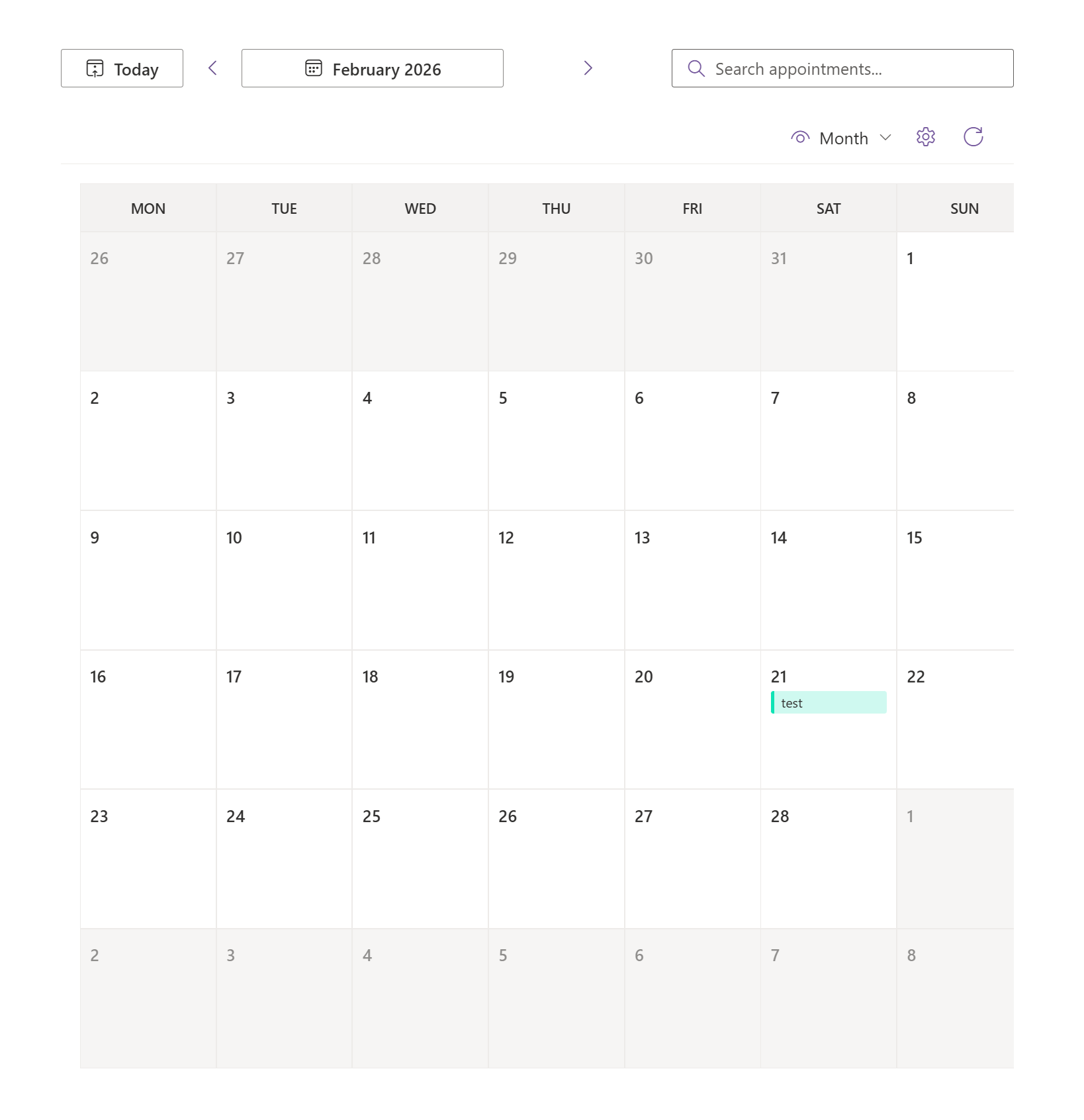
My Calendars is a SharePoint Framework webpart that brings appointments and dated work from multiple sources into one interactive calendar view.
Use it when a SharePoint page needs to show a combined planning picture from Outlook calendars, SharePoint lists, Planner, Microsoft 365 Groups, Teams, Teams Shifts, or ICS feeds.
Best For
- Department or team pages that need one place to view calendar information.
- Planning pages that combine meetings, list items, tasks, shifts, and external calendars.
- Key users who need configurable calendar sources without asking IT to build a full custom app.
- Scenarios where people need day, week, month, schedule, and search views.
Do Not Use It For
- Appointment intake. Use Bookings when people need to schedule with controlled availability.
- A single personal calendar that Outlook already handles well.
- High-risk deployments where the organization has not reviewed the requested Graph permissions.
- Complex resource scheduling, rostering, or project portfolio management that needs a dedicated system of record.
Permissions And Consent
The webpart reads calendar and planning data through Microsoft Graph and stores user preferences in the user's OneDrive app folder.
Required permissions:
Calendars.Readto read the user's calendars.Calendars.Read.Sharedto read calendars shared with the user.MailboxSettings.Readto read mailbox timezone settings.Files.ReadWrite.AppFolderto store user preferences in the OneDrive app folder.Sites.Read.Allto discover and read SharePoint list calendars.Tasks.Readto read Planner tasks the user can access.Group.Read.Allto discover Microsoft 365 Groups and read group calendar events.Team.ReadBasic.Allto discover joined Teams and map Group or Teams sources.Schedule.Read.Allto read Teams Shifts.
Review these permissions before broad rollout. In SharePoint Framework solutions, requested Graph permissions are approved through the SharePoint admin center API access flow and are granted to the tenant's SharePoint Online Client Extensibility Entra ID application. That makes approval a tenant-level decision, even if the webpart is only placed on one page at first.
Deploy It
- Download the package from the My Calendars releases page, or build the solution and use the
.sppkgfile fromsharepoint/solution/. - Test the package with representative calendar sources in a development or pilot tenant.
- In the SharePoint admin center, open More features > Apps.
- Upload the
.sppkgfile to the Apps site. - Review and approve the requested Microsoft Graph permissions.
- Enable the app and decide whether it should be available tenant-wide or only added where needed.
- Add the webpart to a SharePoint page and configure the required views and sources.
Configure It
Use the property pane to set the default calendar experience:
- Default View: day, week, month, or schedule.
- Work Hours: start hour, end hour, slot duration, weekends, and first day of week.
- Calendar Sources: Exchange calendars, SharePoint list calendars, Planner tasks, Groups or Teams calendars, Teams Shifts, and ICS feeds.
- Source Management: colors, enabled state, removal, service logos, Planner filters, and SharePoint field mapping.
- ICS Proxy Settings: custom proxy URL, fallback behavior, and proxy priority.
Start with the smallest useful set of sources. A combined calendar is only helpful when users trust where each item came from and understand what they can act on.
Ownership And Support
Assign an IT owner for deployment, Graph permissions, and upgrades. Assign a page or process owner for each SharePoint page that uses the webpart. That owner should decide which sources belong on the page, who maintains them, and how people should report missing or incorrect items.
When upgrading, upload the new .sppkg file and overwrite the existing package. Test the views, source configuration, and personal preferences after the upgrade.
Source And Documentation
- My Calendars on GitHub
- Current releases
- Manage apps using the SharePoint Apps site
- Connect to Entra ID-secured APIs in SharePoint Framework solutions
- Microsoft Graph permissions reference