My Enterprise Apps
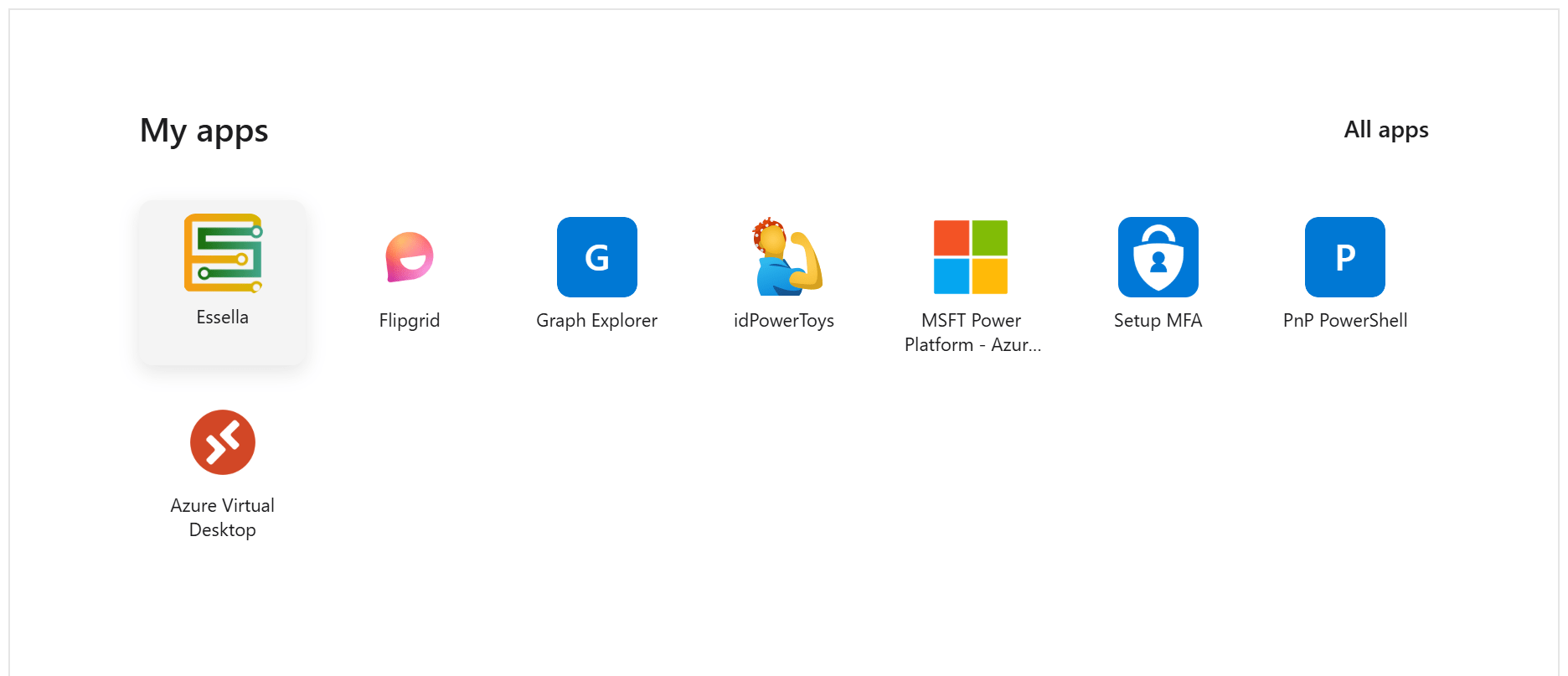
My Enterprise Apps is a SharePoint Framework webpart that shows the Entra enterprise applications the current user can access.
Use it when people need a clearer app launch page inside SharePoint or an intranet, especially when the standard Microsoft 365 app launcher does not reflect the way your organization wants to present business applications.
Best For
- A SharePoint page that acts as a practical app hub.
- Intranet pages where users expect business applications next to guidance or support content.
- Tenants where Entra enterprise applications are already managed carefully.
- Organizations that want configurable sorting and icon sizing without building a custom portal.
Do Not Use It For
- A simple static list of links that does not need Entra data.
- Tenants where IT does not want to approve
Application.Read.All. - Replacing access governance. The webpart shows applications; it does not decide who should have access.
- Public or anonymous pages. It depends on the signed-in user's Microsoft 365 context.
Permissions And Consent
The webpart uses Microsoft Graph to read the current user and enterprise applications.
Required permissions:
User.Readto read the signed-in user's profile.Application.Read.Allto read enterprise applications.
Application.Read.All requires tenant admin review. In SharePoint Framework solutions, requested Graph permissions are approved through the SharePoint admin center API access flow and are granted to the tenant's SharePoint Online Client Extensibility Entra ID application, not only to one page where the webpart is used. Review the request with the same care you would use for any tenant-level Graph permission.
Deploy It
- Download the package from the My Enterprise Apps releases page, or build the solution and use the
.sppkgfile fromsharepoint/solution/. - Test the package in a development or pilot tenant first.
- In the SharePoint admin center, open More features > Apps.
- Upload the
.sppkgfile to the Apps site. - Review and approve the requested Microsoft Graph permissions.
- Enable the app and decide whether it should be available tenant-wide or only added where needed.
- Add the webpart to a SharePoint page and configure the property pane.
Configure It
Use the property pane to set:
- Title: the heading shown above the app list.
- Sort Order: app-name keywords, one per line, to prioritize matching apps.
- Show Hidden Apps: whether hidden enterprise applications should appear.
- Icon Size: small, normal, large, or huge.
Keep the sort order short. It should help users find the most important applications first, not become a second permission model.
Ownership And Support
Assign a business owner for the page and an IT owner for the app package and Graph permission. The business owner decides which app hub experience is useful. IT owns deployment, permission review, upgrades, and support expectations.
When upgrading, upload the new .sppkg file and overwrite the existing package. Test the page after the upgrade, especially if the release changes Graph behavior, sorting, or icon rendering.
Source And Documentation
- My Enterprise Apps on GitHub
- Current releases
- Manage apps using the SharePoint Apps site
- Connect to Entra ID-secured APIs in SharePoint Framework solutions
- Microsoft Graph permissions reference